Document Parsing with X-AnyLabeling
Introduction
The document parsing capabilities of the PaddleOCR-VL series are now integrated with the X-AnyLabeling annotation platform.
X-AnyLabeling is an industrial-grade all-in-one intelligent annotation platform from CVHub that unifies training, inference, and annotation. Its PaddleOCR panel lets developers run layout parsing, text recognition, formula recognition, table recognition, and seal recognition on images and PDFs with PaddleOCR-VL series models, then review, edit, copy, and export the results.
PaddleOCR-VL is exposed in X-AnyLabeling through two integration modes:
- Official API (recommended): call the PaddleOCR official API directly. Best for quickly validating the model, lightweight experimentation, and low-overhead development — no inference service to deploy.
- Local deployment: run inference yourself via X-AnyLabeling-Server. Best for private deployments, sensitive data, and sustained annotation workloads.
1. Install X-AnyLabeling
Download the prebuilt binary for your platform from the official release page:
Alternatively, install via pip:
After launch, open the PaddleOCR panel from the PaddleOCR icon in the left toolbar, or with the shortcut Ctrl+4.
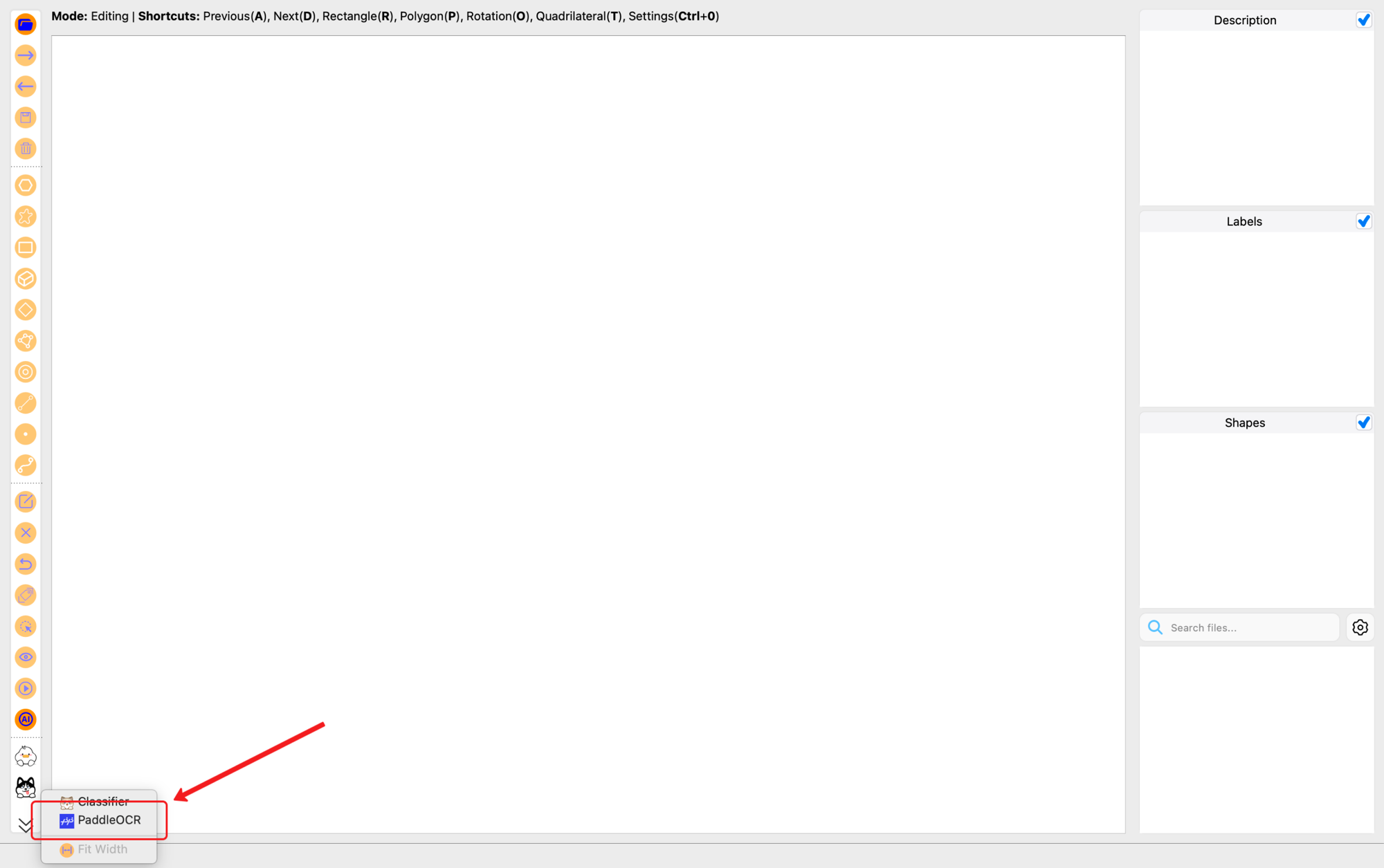
Once opened, the initial PaddleOCR panel looks like this:
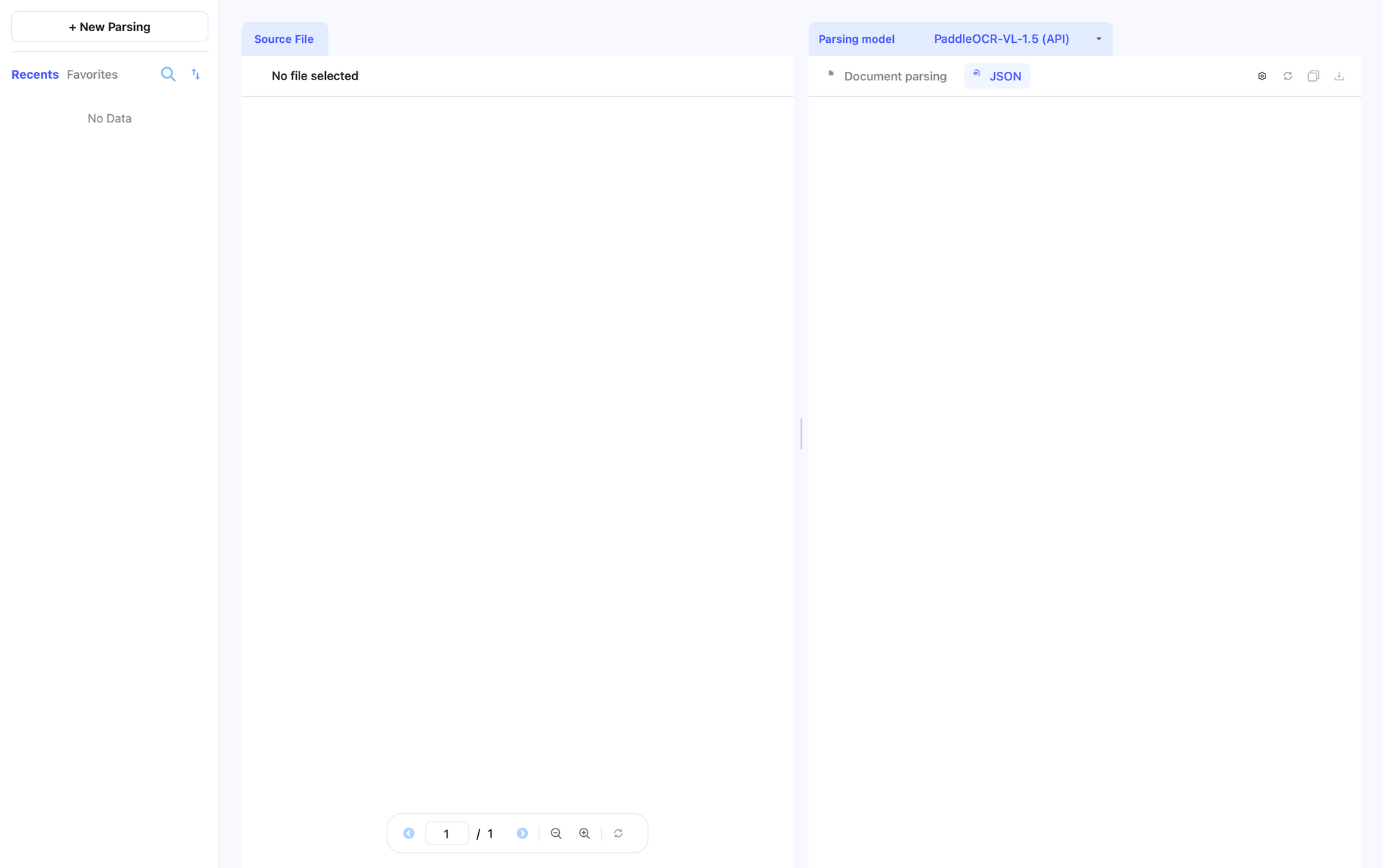
2. Configure the PaddleOCR Official API
The X-AnyLabeling client supports the PaddleOCR official API out of the box. The first time you open the PaddleOCR panel without API credentials configured, a PPOCR API Settings dialog appears automatically. You can reopen it later via the gear button at the top of the right-hand result panel.
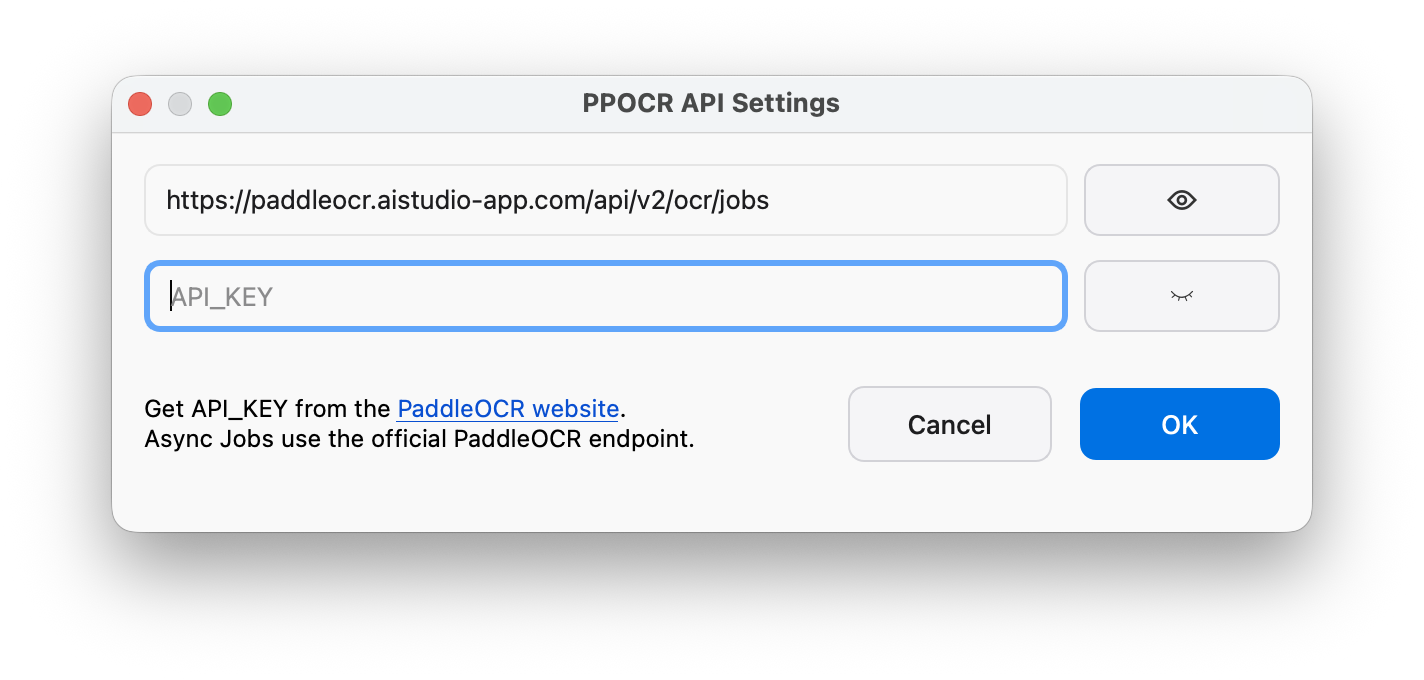
To obtain the API_KEY:
- Visit the PaddleOCR website: https://www.paddleocr.com
- Click API in the top-right corner and select PaddleOCR-VL-1.5.
- Open the example code and copy the
TOKEN(access token). - Return to X-AnyLabeling, paste it into the
API_KEYfield ofPPOCR API Settings, and confirm.
The API_KEY is used for request authentication, and the official service offers a free quota of tens of thousands of pages per day. The configuration is persisted locally:
By default, ${workspace} is the user home directory ~; if X-AnyLabeling is launched with --work-dir, that directory is used instead.
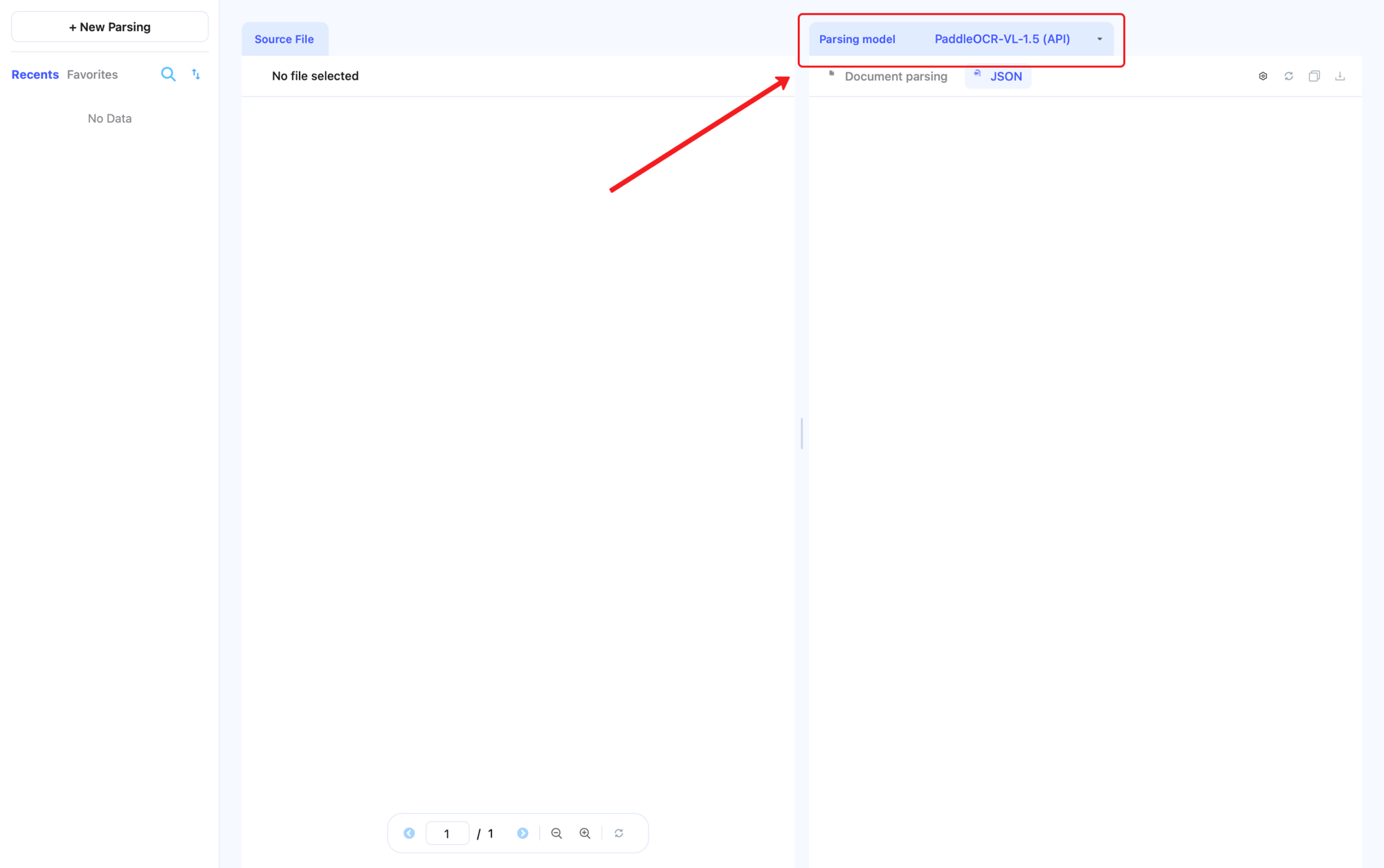
The right-hand Parsing Model dropdown currently supports these official API options:
PaddleOCR-VL-1.5 (API)PaddleOCR-VL (API)
3. Import Documents to Parse
In the PaddleOCR panel, click + New Parsing at the top of the left panel to import files. Imported files are copied into the local PaddleOCR working directory and added to the parsing queue automatically.
Supported file types:
| Type | Extensions |
|---|---|
| PDF documents | .pdf |
| Images | .bmp, .cif, .gif, .jpeg, .jpg, .png, .tif, .tiff, .webp |
Typical real-world inputs include textbook pages, paper screenshots, receipts, scanned contracts, tabular documents, and government/enterprise materials.
4. Choose a Parsing Model
The Parsing Model dropdown on the right lets you switch between versions of the PaddleOCR-VL series:
PaddleOCR-VL-1.5 (API)(recommended): achieves 94.5% accuracy on OmniDocBench v1.5, supports polygon localization for greater robustness in scanned, tilted, curved, screen-captured, and complex-lighting scenarios, and adds seal recognition plus text detection and recognition capabilities.PaddleOCR-VL (API): the initial version.
5. Run Document Parsing
Once a model is selected, X-AnyLabeling starts parsing automatically. The model recognizes and structurizes text, formulas, tables, charts, seals, and other elements.
The colored dot at the lower-left corner of each left-side file item indicates parsing status:
- Blue: queued or parsing
- Green: finished
- Red: failed
6. Review Results Against the Source
When parsing finishes, X-AnyLabeling shows a side-by-side view: the original document on the left, the model's parsed result on the right. You can review the text, formulas, table structure, chart information, and seal results block by block:
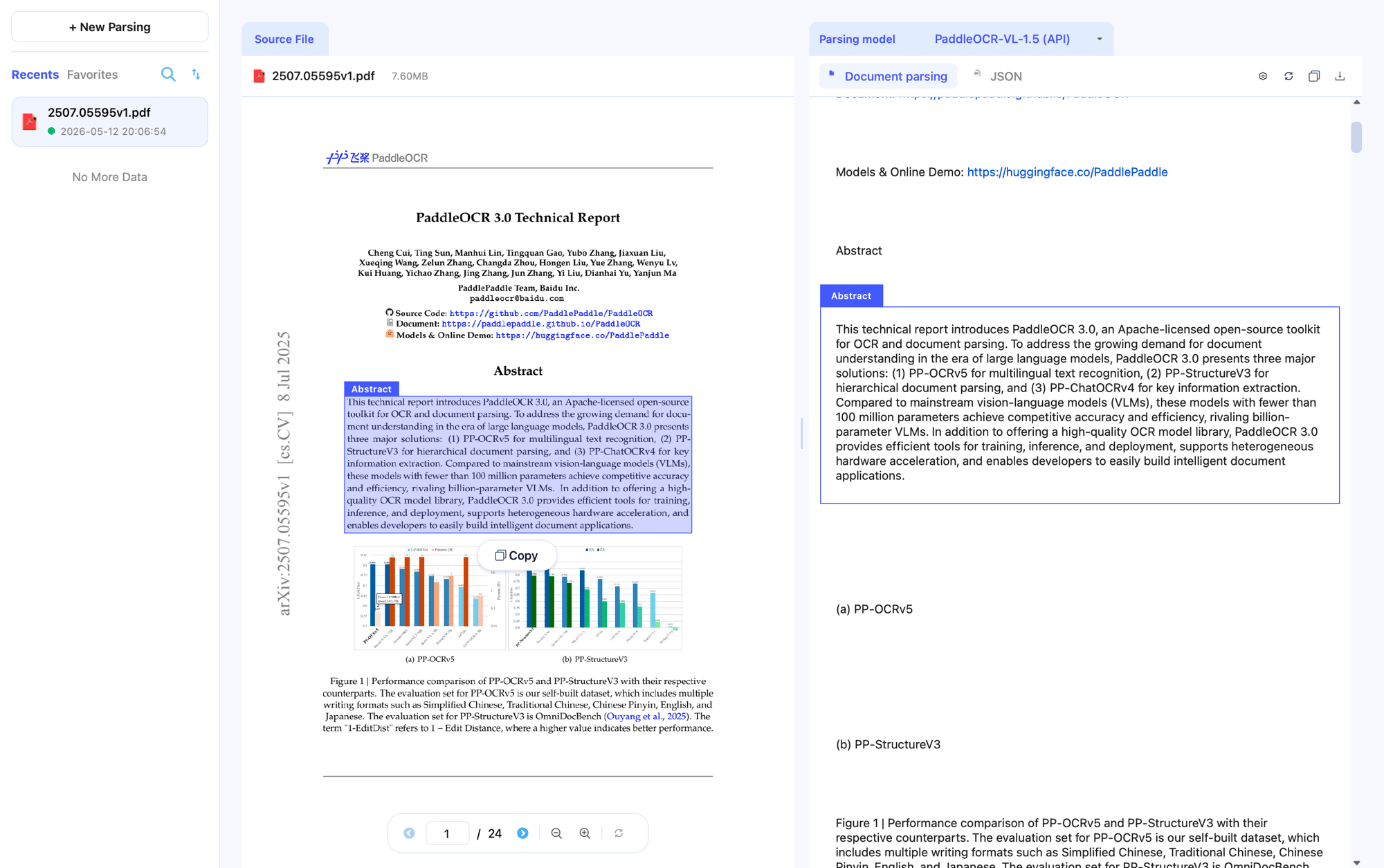
- Click any block on either side to highlight the matching block on the other side.
- Double-click a block on the right, or click its
Correctbutton, to enter edit mode. - Hover over a block in the source preview to reveal a
Copybutton for that block. - Manual corrections are recorded in the JSON as edited blocks; use the re-parse button to refetch model results.
Dedicated editors are provided for different content types:
| Editor | Used for |
|---|---|
| Rich text editor | Plain text, titles, footers, seals, and other non-table/non-formula blocks |
| LaTeX formula editor | display_formula, formula, formula_number, algorithm — edits source with live preview |
| Table editor | table blocks and content recognized as table structure — supports cell editing, row/column add/remove |
7. Switch to the JSON View
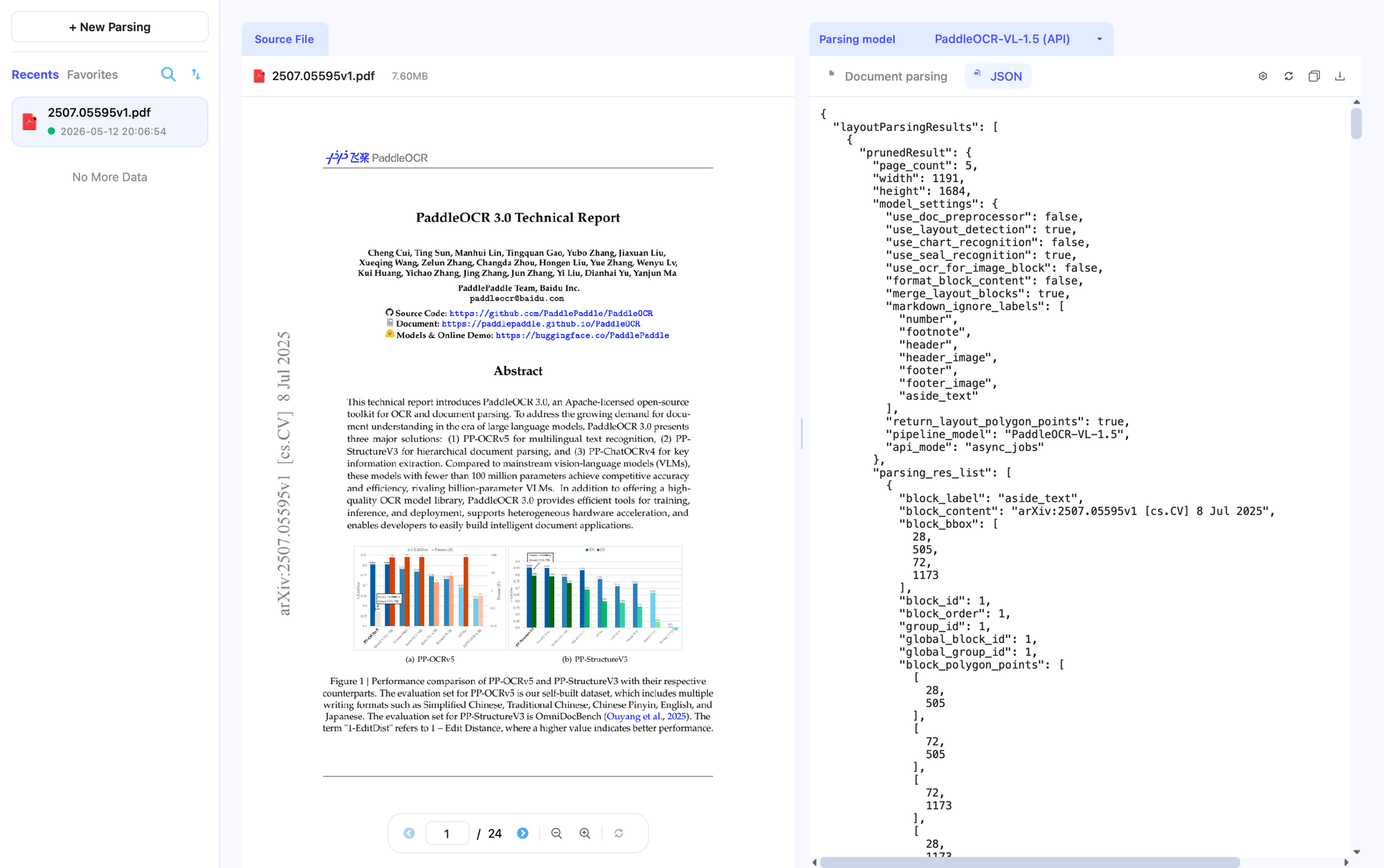
In addition to Document Parsing, X-AnyLabeling also offers a JSON view:
Document Parsingview: card-based display of layout blocks, text, formulas, tables, and images — best for human review.JSONview: the full structured result — best for data processing, training-sample construction, evaluation aggregation, and integration with downstream systems.
8. Export Results
After reviewing and correcting the results, you can export the annotations for downstream use:
- Building OCR training datasets
- Running model evaluation and error analysis
- Curating internal document parsing data
- Feeding business systems for automation
In the Document Parsing view, the download button on the right toolbar exports a ZIP containing Markdown and related resources; in the JSON view, it exports the full JSON.
Local Data Layout
X-AnyLabeling's PaddleOCR panel stores imported files and parsing results in a local working directory:
${workspace}/xanylabeling_data/paddleocr/
├── api_settings.json
├── ui_state.json
├── files/
│   ├── example.pdf
│   ├── image.png
│   ├── __PDF_example/
│   │   ├── page_001.png
│   │   └── page_002.png
│   └── __BLOCK_IMAGES_image.png/
│       └── page_001_block_0001.png
└── jsons/
    ├── example.pdf.json
    └── image.png.json
Deleting a file from the left-hand list also removes its source file, local JSON, PDF preview pages, and block crops.
References
- X-AnyLabeling repository: https://github.com/CVHub520/X-AnyLabeling
- X-AnyLabeling PaddleOCR panel documentation: https://github.com/CVHub520/X-AnyLabeling/blob/main/docs/zh_cn/paddle_ocr.md
- X-AnyLabeling-Server (local inference): https://github.com/CVHub520/X-AnyLabeling-Server
- PaddleOCR website: https://www.paddleocr.com
- PaddleOCR-VL tutorial: PaddleOCR-VL Tutorial